How to Manage Restaurant Reservations With AI Using Reservics MCP


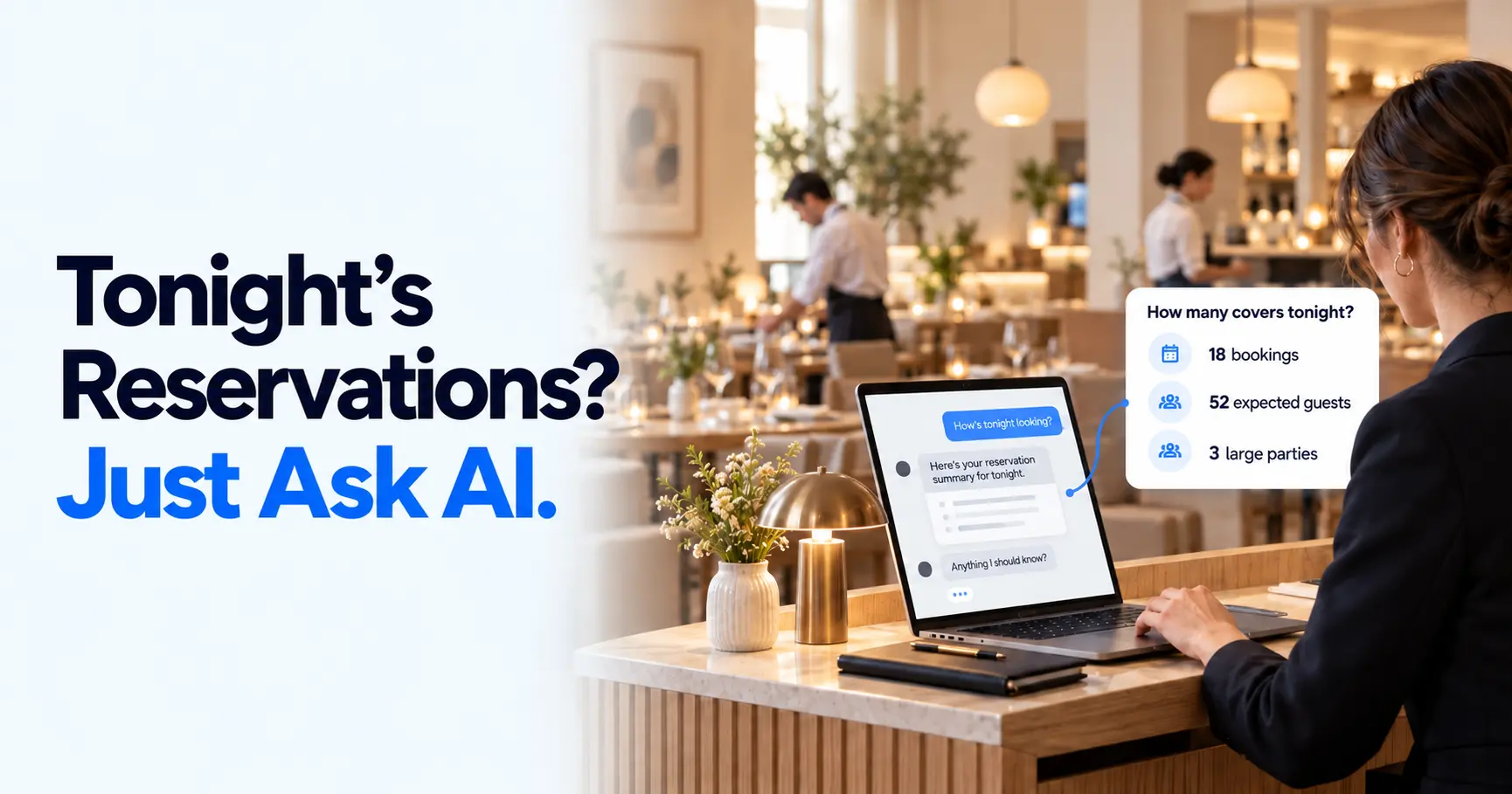
It is 5:40 PM. Dinner starts in twenty minutes, the phone is ringing, and the owner messages: “How full are we tonight, and did the Rahman party confirm?”
The answer is in your booking calendar. Finding it means opening the admin, choosing a location, checking the evening and adding up the guests.
Reservics MCP lets you manage restaurant reservations with AI instead. You ask that question in your connected AI app, and it pulls live reservation information from Reservics, so you can prepare for service without working through each booking yourself.
Your reservations stay in Reservics. Your AI app becomes another controlled way to work with them.
Table of Contents
The Quick Answer: How Can AI Manage Restaurant Reservations?
To manage restaurant reservations with AI, connect an AI app such as Claude Desktop to Reservics with an AI tool key. You can then ask about tonight’s bookings, open tables and last week’s numbers in plain English. With a Read and write key, it can also create, move and update bookings for you. MCP comes with the Advance plan.
Follow the official Reservics MCP documentation for connection instructions and current limits.
What Is Reservics MCP?
Reservics MCP connects your Reservics booking calendar to the AI app you already use. Most restaurant teams start with Claude Desktop; developer tools such as Codex, Claude Code and Cursor work too.
MCP stands for Model Context Protocol, an open standard for connecting AI apps to other software. It gives the AI a defined set of actions it can use to retrieve information or make permitted changes in another system.
Instead of copying bookings into a chat, you ask a question. The connected app requests the relevant data from Reservics and uses it to answer.
For example:
“How many bookings and covers do we have tonight?”
Covers means the number of guests expected. Ten bookings could mean twenty guests or sixty; the difference matters when planning food and staffing.
AI That Helps Guests Book vs AI That Helps Your Team Work
A guest-facing AI agent may answer calls, suggest a restaurant or help someone make a reservation. Reservics MCP supports the team handling those reservations.
| Guest-facing AI reservation agent | Reservics MCP | |
|---|---|---|
| Main user | The diner | Owner, manager or host |
| Typical task | Find a restaurant or book a table | Check reservations, review performance or update a booking |
| Example question | “Can I book a table for four?” | “How many guests are expected tonight?” |
| Main benefit | A more convenient booking experience | Fewer manual steps around reservation management |
Both address useful parts of the restaurant workflow. Reservics MCP focuses on what happens on your side of the booking.
How Is It Different From the Built-In Reservics Assistant?
The built-in Reservics assistant brings AI into the Reservics admin. MCP does the opposite: it brings Reservics into the AI app you already have open.
If you spend most of your day in the admin, the built-in assistant is probably all you need. If you already plan your week in an AI app, MCP saves you from switching tabs. The built-in assistant is on every plan; MCP needs Advance.
One Restaurant Day With Reservics MCP
So what does it look like to manage restaurant reservations with AI on a real shift? Picture a restaurant with two locations on a normal service day. Here’s how the team could use Reservics MCP from morning prep to closing time.
10:00 AM: Give the Kitchen a Clearer Prep Count
“How many bookings and covers do we have today at each location? Split lunch and dinner.”
The chef gets a count of expected guests rather than preparing from a rough estimate. A Read only key is enough for this task.
Bookings can still change, and walk-ins are separate from the reservation count. The value is a clearer starting point for prep.
12:15 PM: Check Availability While a Guest Is on the Phone
“Do we have a table for four at Dhanmondi this Friday between 7 PM and 9 PM?”
The AI checks available start times. With Read and write access, the host can then request a booking using the guest’s details.
Reservics applies its booking rules. Where deposits are required, a new booking starts pending payment rather than becoming a paid reservation just because the AI created it.
4:30 PM: Handle a Reservation Change
“Move booking RSV-128 to Saturday at 8 PM.”
Reservics checks that the new slot is free before moving the booking, and the guest gets an email with the new time. Just confirm the booking reference, location and date before you approve the change. (For changes you’d rather make by hand, see how to manage reservations in the Reservics admin.)
This is particularly useful when the request arrives while you are already working in your AI app.
5:40 PM: Prepare the Manager’s Pre-Service Briefing
“List tonight’s bookings from 6 PM, with party sizes and special requests. Highlight parties of six or more.”
Your host sees the big tables and special requests before the first guest walks in. Nobody has to read the calendar out loud during the line-up.
For a fuller summary, ask: “Prepare tonight’s dinner briefing for Dhanmondi. Include bookings, covers, large parties, pending reservations and the busiest arrival times.”
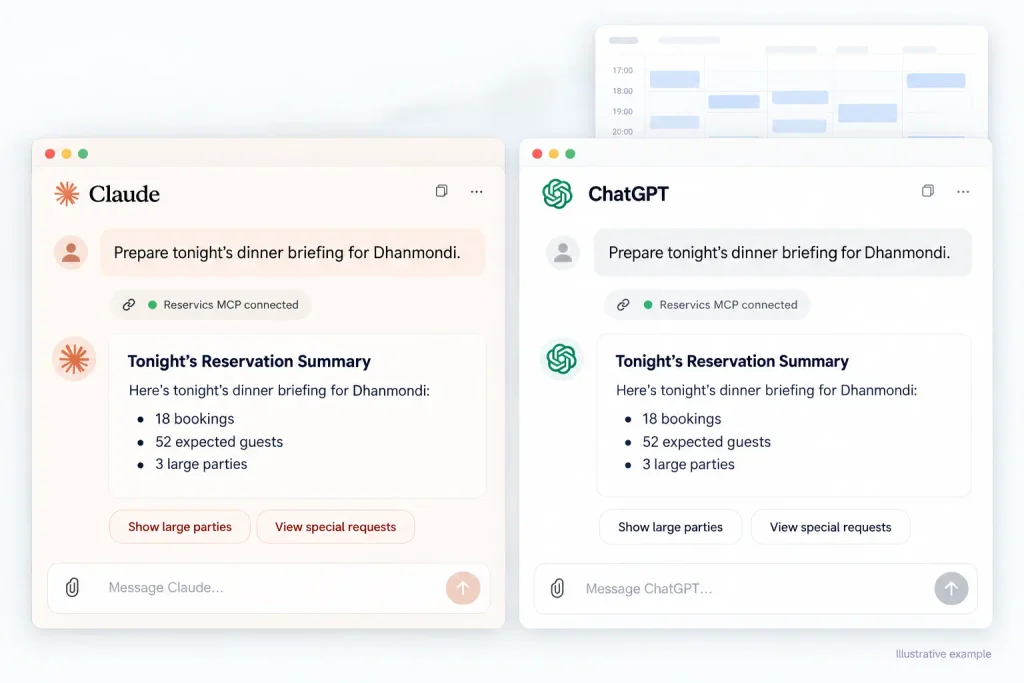
In our example, the answer comes back as 18 bookings, 52 expected guests and three large parties. Then you follow up: “Show the large parties.” “Which bookings have special requests?” “Is the Rahman party confirmed?” That last one answers the owner’s 5:40 PM message in a single line, and you still have time to brief the floor.
Save the prompt your team finds useful and reuse it before each service. The practical benefit is a consistent handover, with less time spent gathering the same information.
10:30 PM: Keep Booking Outcomes Accurate
“Mark RSV-131 as no-show and RSV-129 as completed.”
With a Read and write key, your team can record each booking’s outcome straight from the chat, without opening the admin at the end of a long shift.
An AI summary cannot correct missing no-show records by itself. Someone still needs to record what happened during service.
Monday Morning: Review the Week
“Compare last week with the week before: bookings, covers, no-show rate and cancellation rate. Which days and hours were busiest?”
The owner gets a starting point for staffing and booking-policy discussions without assembling a separate spreadsheet. The same numbers live in your Reservics dashboard if you want to see them as charts.
Use the figures to investigate patterns, then decide what needs to change.
What Can You Ask Reservics MCP to Do?
Beyond the daily workflow, the connection can help with these recurring tasks:
| Task | Example request | Access needed |
|---|---|---|
| Find a booking | “Find Sara Ahmed’s reservation for Friday.” | Read only |
| Review peak demand | “Which days and start times had the most covers last month?” | Read only |
| Review guest retention | “Compare our repeat-guest rate with the previous period.” | Read only |
| Check the waitlist | “Who is currently waiting at this location?” | Read only |
| Send a reminder | “Send a reminder for booking RSV-210.” | Read and write |
| Update selected settings | “Turn the waitlist on and hold freed tables for 30 minutes.” | Read and write |
| Cancel an eligible booking | “Cancel RSV-210.” | Read and write; paid-deposit bookings stay in the admin |
Include the location, exact date and booking reference when needed. If several guests match a name, identify the correct reservation before requesting a change.
Track Your Restaurant’s No-Show Rate With AI
An empty table affects more than the reservation count. It can mean food prepared for guests who never arrive and staff scheduled for a busier service.
The Resos No-Show Index 2026, covering 3.77 million reservations at 2,417 restaurants between August 2025 and July 2026, reported:
- A 2.33% recorded no-show rate.
- Dinner no-shows of 2.63%, compared with 1.84% at lunch.
- 56% of cancellations arriving within 24 hours of service or after the booking had started.
These benchmarks describe the Resos dataset. Your own rates may differ because of restaurant type, booking sources and how consistently staff record outcomes.
The useful next step is to ask about your own bookings:
| Question to ask | What to review afterward |
|---|---|
| “What was our no-show rate last month compared with the month before?” | Whether the pattern is improving or needs investigation |
| “List last month’s no-shows with start times and party sizes.” | Which services and group sizes deserve closer attention |
| “What was our cancellation rate last month?” | Whether cancellation policies and waitlist routines need review |
| “Which reminders are enabled, and when are they sent?” | Whether your reminder setup matches your service workflow |
The AI helps you reach the information. Use your own results to review staffing, reminder timing, waitlist routines and booking policies. Deposit rules are managed in the admin. If the numbers are higher than you’d like, our guide on how to reduce restaurant no-shows without scaring guests away covers what to change first.
Choose What the AI Can Access
Every Reservics AI tool key has an access level, and it’s worth starting small. Give Read only keys to people who just need answers, like your kitchen lead or finance team. Save Read and write for managers and trained hosts who actually handle bookings.
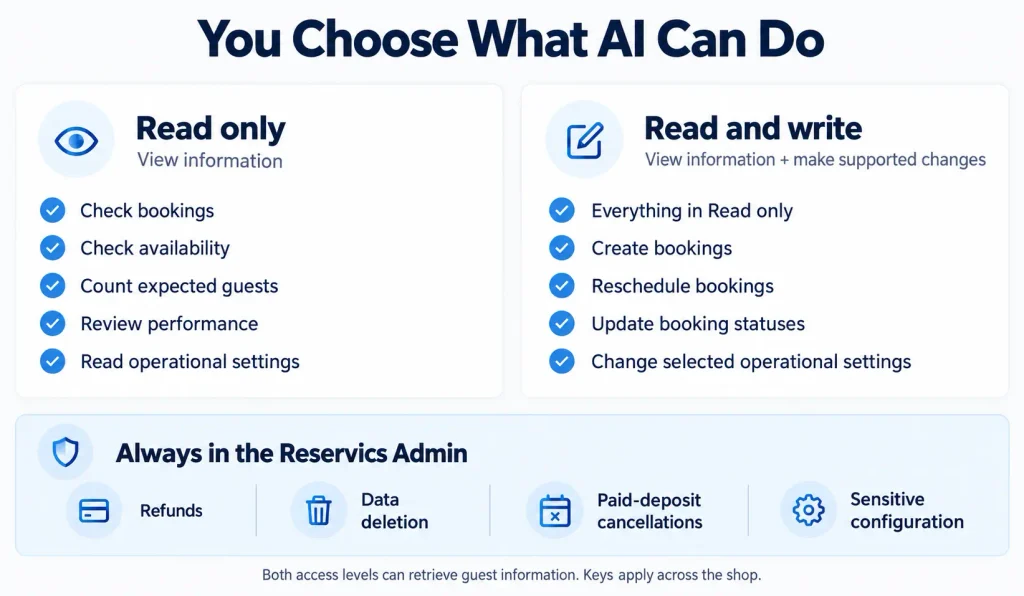
A Read only key cannot make changes. It can still retrieve guest information, so give it only to people who should see that data.
One key covers every location in your Shopify store; you can’t limit it to a single location. If you run separate stores, create a key for each one and name the store in your request.
What Always Stays in the Admin?
MCP cannot delete data, issue refunds or cancel bookings with paid deposits. Sensitive configuration, including billing, access keys and opening-hours replacement, also stays in the admin.
Check Approval Settings in Your AI App
Many AI apps ask for approval before running changes, but behaviour depends on the app and its configuration. Check those settings before enabling write access.
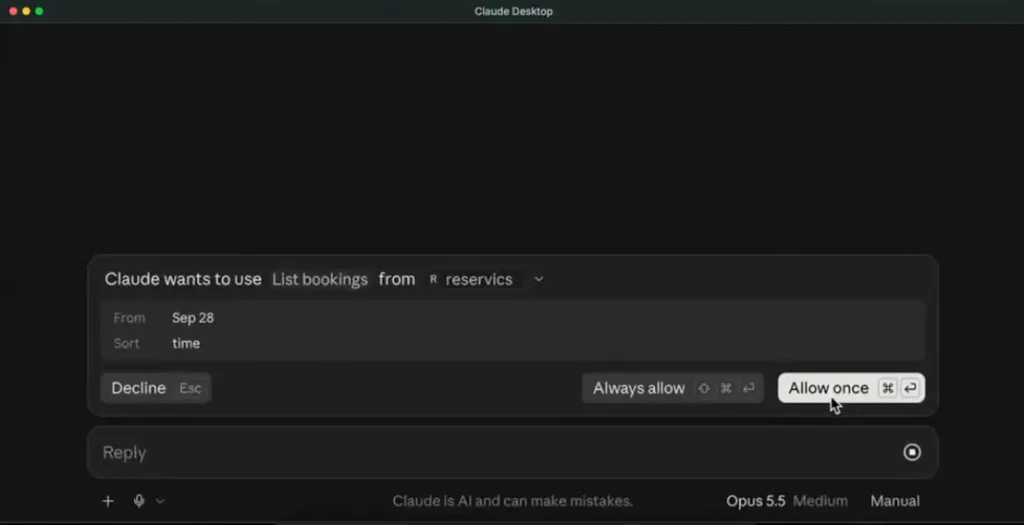
When an approval prompt appears, review the intended action, booking and date. Guest names and special requests are booking data; they should never be treated as instructions to the AI.
Know Where Guest Data Goes
When your connected AI reads a booking, guest information may be sent to that AI provider. Review the provider’s data policy before connecting it.
Read only access prevents changes; it does not prevent information from being retrieved. For performance reviews, ask for totals and trends when you do not need individual guest details.
How to Connect Reservics MCP
You need an Advance plan, a compatible AI app and a Reservics AI tool key. Depending on your app, setup can involve a command or a configuration file. If Reservics isn’t on your store yet, start with how to add table booking to your Shopify store.
Step 1: Create an AI Tool Key
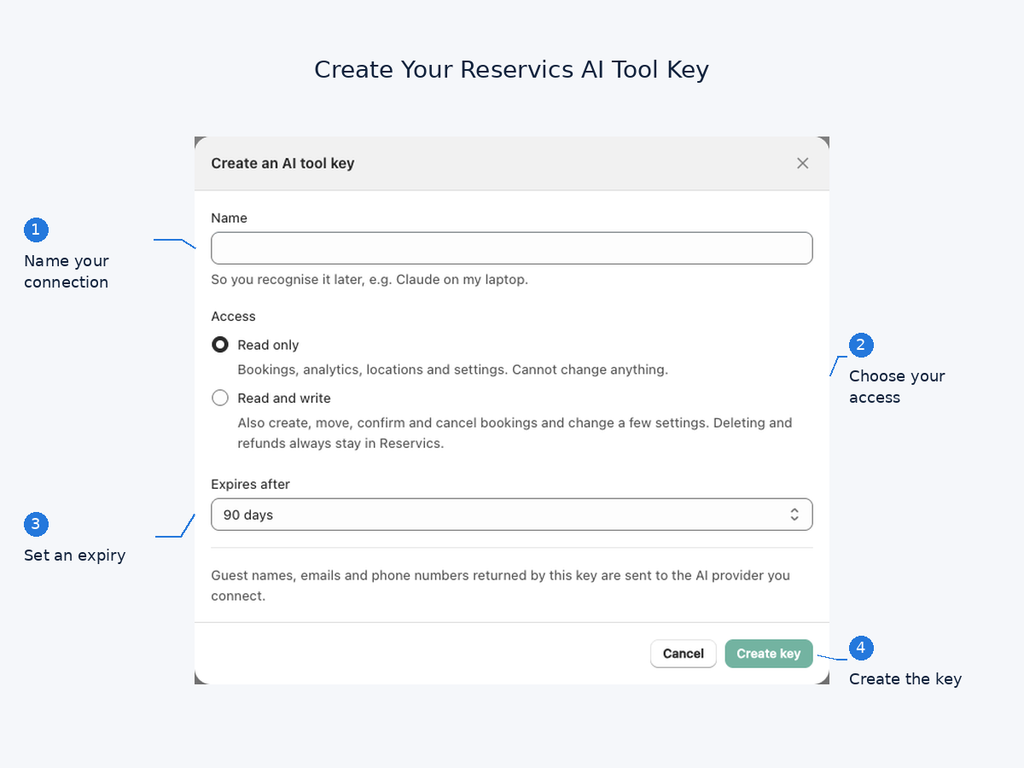
Open Settings > MCP / AI tools in Reservics and select Create key.
Give the key a recognisable name, choose Read only to start, and select an expiry. Copy the key when it appears; it is shown only once.
Step 2: Connect Your AI App
Use the app-specific setup instructions displayed by Reservics, or follow the MCP connection guide.
Reservics works with any AI app that can connect to an MCP server using a custom header. Setup looks a little different in each app, so follow the steps for yours.
Keep your key private. Do not paste it into ordinary chat messages, publish it in screenshots or share it with guests.
Step 3: Ask a Read-Only Question
Open a new chat and try:
“How many bookings and covers do we have tomorrow?”
Compare the answer with Reservics before using it for planning. Name the location and date when a request could be ambiguous.
If the Connection Fails
| Problem | First thing to check |
|---|---|
| Authentication error | The key may be missing, expired or revoked |
| Advance-plan error | Confirm the shop’s plan |
| A write action is unavailable | Check whether the key is Read only |
| The answer uses an unexpected date | Specify the date and check the location’s timezone |
For app-specific fixes, use the troubleshooting section in the official guide.
Introduce It to Your Team Gradually
The easiest way to manage restaurant reservations with AI is to start with daily questions: tomorrow’s covers, tonight’s large parties and weekly performance. Compare the answers with the admin while your team gets familiar with the connection.
Then give write access to trained staff for a small set of tasks, such as updating completed bookings or creating reservations. Review approval settings and use a demo account when practising changes.
Once a routine works, keep the prompt somewhere the team can reuse it. A consistent pre-service briefing is more useful than a different experiment every night.
Use separate keys where practical so you can revoke one connection without disrupting the others. Check expiry and activity in Settings > MCP / AI tools.
Frequently Asked Questions
Can AI manage restaurant reservations?
Yes. You can manage restaurant reservations with AI by connecting an AI app to your booking system. It can look up bookings, check availability and report on performance. With a Read and write key, it can also create, reschedule and update bookings in Reservics.
What is an MCP server for a restaurant?
It is a connection that lets compatible AI apps work with your restaurant system through a defined set of actions. Reservics MCP lets an authorised app read your reservation data and, with write access, make booking changes.
Can I track my restaurant’s no-show rate with AI?
Yes. Ask your connected app for the no-show rate for a specific period and a comparison with the previous period. The result depends on staff recording booking outcomes accurately.
Do I need technical skills?
You do not need to develop an integration, but some apps require editing a configuration file or running a command. Reservics supplies app-specific instructions with the key.
Is MCP included in every Reservics plan?
No. MCP requires Advance. The built-in Reservics AI assistant is available on every plan.
Does AI usage cost extra?
Reservics includes MCP in Advance without a separate AI usage charge. Your connected AI provider may have its own subscription or usage costs.
Can one connection cover multiple locations?
Yes. A key works across the locations in its Reservics shop. Separate shops need separate keys and connections.
Can the AI refund or cancel a paid-deposit booking?
No. Refunds and cancellation of bookings with paid deposits stay in the Reservics admin.
Start With Tonight’s Guest Count
You don’t need a big rollout to manage restaurant reservations with AI. Start with one question your team already asks:
“How many covers do we have tonight?”
Create a Read only key, connect your AI app and check the answer against your Reservics calendar. Then try a pre-service briefing or a weekly review.
When the connection fits your workflow, add write access for the people who handle booking changes. Your reservations remain in Reservics, with another way for your team to reach them.