
Reservics can talk to the AI tool you already use. Connect Claude, Codex, Cursor or another MCP app to your Reservics account, then ask in plain words: “How many bookings do we have tonight?”, “What was our no-show rate last month?” or “Move the Rahman booking to 8 pm.” The AI reads your real data and, if you allow it, makes the change for you.
This feature is part of the Advance plan.
What is MCP? #
MCP (Model Context Protocol) is an open standard that lets an AI app connect to other software safely. Think of it as a plug: Reservics offers a set of actions (list bookings, check availability, create a booking and so on), and any AI app that speaks MCP can use them.
Without MCP, the AI only knows what you paste into the chat. With MCP, it can look up your bookings, locations and settings itself, always up to date, and it can only do the things Reservics allows.
Why use it #
- Answers in seconds. “How many covers tomorrow?” is one question instead of opening the calendar and counting.
- Analytics without reports. Ask for today’s bookings, next week, next month, your no-show rate, cancellation rate, busiest days and hours, repeat guests and more.
- Everyday tasks by chat. Create, move, confirm and cancel bookings, send a reminder, or update a location while you are already working in your AI tool.
- Works with the AI you already pay for. Claude Desktop, Claude Code, Codex, Cursor and other MCP apps.
- Safe by design. Deleting data and refunds are never possible through MCP. They stay in the Reservics admin.
What you need #
| Requirement | Why |
|---|---|
| Reservics Advance plan | MCP access is an Advance feature. On Free and Pro the connection is refused. |
| An AI app that supports MCP | Claude Desktop, Claude Code, Codex, Cursor, or any app that can connect to an MCP server over HTTP with a custom header. |
| A Reservics AI tool key | The key tells Reservics which shop the AI is working for and what it may do. You create it in the admin (step 1 below). |
Step 1: Create a key #
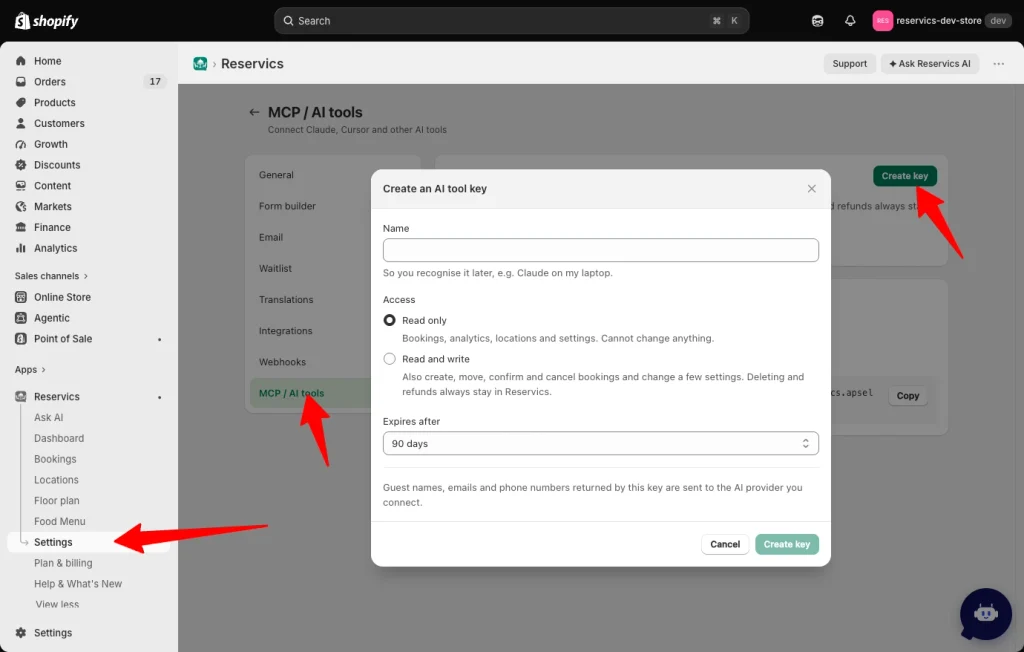
- In the Reservics admin, open Settings > MCP / AI tools.
- Click Create key.
- Give it a Name you will recognise later, for example Claude on my laptop.
- Choose the Access:
Read only: the AI can look at bookings, analytics, locations and settings, but cannot change anything.
Read and write: the AI can also create, move, confirm and cancel bookings and change a few settings. - Choose when it Expires: after 30, 90 or 365 days.
- Click Create key. The key appears once, together with ready-made setup instructions for each AI app. Click Copy key and keep it somewhere safe.
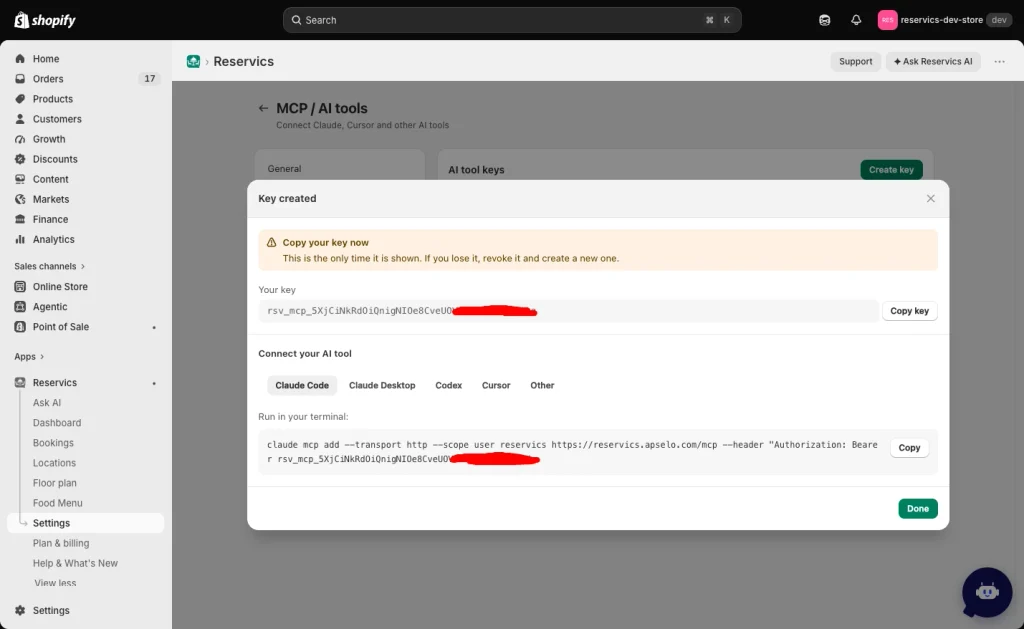
Important: the key is shown only once. Reservics stores it in a form that cannot be read back, so if you lose it, revoke it and create a new one. Treat it like a password: never share it in a chat, an email or a screenshot.
Every time a key is created, the shop owner gets an email notice. If you did not create it, revoke it straight away.
Tip: start with a Read only key. It is perfect for analytics and questions, and you can create a Read and write key later when you want the AI to make changes.
Step 2: Connect your AI app #
After you create a key, the admin shows these instructions with your key already filled in, and each one has its own Copy button. The examples below use <your-key> where your key goes. The Reservics MCP address is:
https://reservics.apselo.com/mcpClaude Code #
Run this once in your terminal. --scope user makes Reservics available in every folder, not only the one you ran it in.
claude mcp add --transport http --scope user reservics https://reservics.apselo.com/mcp --header "Authorization: Bearer <your-key>"Check it with claude mcp list. Reservics should show as connected.
Claude Desktop #
- Make sure Node.js is installed on your computer (Claude Desktop uses it to reach Reservics).
- In Claude Desktop, open Settings > Developer > Edit config. This opens
claude_desktop_config.json. - Merge the block below into the file. If you already have other servers under
mcpServers, addreservicsnext to them instead of replacing them. - Save the file and restart Claude Desktop completely.
{
  "mcpServers": {
    "reservics": {
      "command": "npx",
      "args": [
        "-y",
        "mcp-remote@0.14.3",
        "https://reservics.apselo.com/mcp",
        "--header",
        "Authorization:${RESERVICS_KEY}"
      ],
      "env": {
        "RESERVICS_KEY": "Bearer <your-key>"
      }
    }
  }
}
Keep Authorization:${RESERVICS_KEY} exactly as written, with no space after the colon. The key itself goes only in RESERVICS_KEY.
Codex #
Add this to ~/.codex/config.toml:
[mcp_servers.reservics]
url = "https://reservics.apselo.com/mcp"
bearer_token_env_var = "RESERVICS_KEY"
Then add the key to your shell profile (~/.zshrc or ~/.bashrc) and start Codex from a new terminal:
export RESERVICS_KEY="<your-key>"This way the key never sits in the config file itself.
Cursor #
Merge this into ~/.cursor/mcp.json, then restart Cursor:
{
  "mcpServers": {
    "reservics": {
      "url": "https://reservics.apselo.com/mcp",
      "headers": {
        "Authorization": "Bearer <your-key>"
      }
    }
  }
}
Other MCP apps #
Any app that supports MCP over Streamable HTTP with a custom header can connect with:
URL: https://reservics.apselo.com/mcp
Header: Authorization: Bearer <your-key>
Apps that can only connect by signing in (OAuth) and have no way to add a header, such as the claude.ai website and mobile app, cannot connect yet.
Step 3: Try it #
Open a new chat in your AI app and ask something about your restaurant. If you have more than one Reservics shop connected, name the shop in your question. Some questions to start with:
| You ask | What the AI does |
|---|---|
| How many bookings do we have today, and who is coming? | Counts today’s bookings and lists guests, times and party sizes. |
| How busy are we next week compared with this week? | Counts bookings and covers for each range and compares them. |
| What was our no-show rate last month? | Returns the no-show rate, cancellation rate and covers, compared with the month before. |
| Which days and hours are our busiest? | Shows bookings and covers by weekday and by start hour. |
| Show me the 10 newest bookings. | Lists the most recently created bookings, whatever date they are for. |
| Do we have a table for 4 at the Dhanmondi location on Friday evening? | Checks real availability and lists the open times. |
| Book a table for 2 tomorrow at 19:30 for Sara Ahmed, sara@example.com. | Checks availability, creates the booking and emails Sara a confirmation (Read and write key). |
| Move booking RSV-128 to Saturday at 20:00. | Checks the new time, moves the booking and emails the guest (Read and write key). |
| Mark RSV-131 as no-show. | Updates the status (Read and write key). |
| Turn the waitlist on and hold freed tables for 30 minutes. | Updates the waitlist settings (Read and write key). |
Most AI apps ask you to approve each change before it runs. Read the request carefully before you click allow.
What the AI can do #
With any key (Read only and Read and write) #
| Area | What it can read |
|---|---|
| Bookings | List bookings for a date or range (up to 31 days and 200 bookings per list), search by guest name or email, filter by location or status, see the newest bookings, and open one booking in full. |
| Booking counts | Total bookings and covers for today, tomorrow, this week, the next 7 or 30 days, the last 7 or 30 days, or any range up to a year, per status and per day. |
| Performance | No-show rate, cancellation rate, covers, average party size, deposit revenue, repeat-guest rate and cover utilization, compared with the previous period. |
| Busiest times | Bookings and covers by weekday and by hour. |
| Availability | Open start times for a location, date and party size. |
| Locations | All locations, and for each one its opening hours, date overrides, party-size limits, table hold time, deposits, approval mode, guest self-service rules and seating areas. |
| Waitlist | Guests waiting or already notified, oldest first. |
| Settings | Your plan, which guest emails are on, reminders, staff alert switches (the number of recipients, never their addresses), waitlist settings and form layout. |
Only with a Read and write key #
| Action | Details |
|---|---|
| Create a booking | Works exactly like creating one in the admin: capacity, opening hours and approval rules apply, and the guest is emailed if you give an email. At a location that takes a deposit, the booking starts as pending with a short payment hold and is cancelled automatically if the deposit is not paid. |
| Reschedule a booking | New date, time or party size. The guest is emailed the new time. |
| Change a booking status | Confirm a pending booking, or mark it seated, completed or no-show. |
| Cancel a booking | Cancels and emails the guest. Not for bookings with a paid deposit (see below). |
| Send a reminder now | Emails the guest using your first enabled reminder template. |
| Remove a waitlist entry | Takes a guest off the waitlist. The entry is kept in the history. |
| Create a location | It starts open Sunday to Friday, 09:00 to 22:00, closed Saturday. Change the hours in the admin. |
| Update a location | Name, address, phone, timezone, seats, party-size limits, how far ahead guests can book, active or primary, and auto-confirm by party size (Pro and above). |
| Staff alerts | Switch each staff alert email on or off: new booking, awaiting approval, cancellation, daily summary. |
| Waitlist settings | Turn the waitlist on or off (Pro and above), hold time for a freed table (5 to 240 minutes), and the storefront text. |
| Reminders | Turn a reminder on or off, or change how long before the booking it is sent, within your plan’s reminder limit. |
What the AI cannot do #
Some actions are too risky to hand to an AI, because a misunderstanding cannot be undone or it moves money. These always stay in the Reservics admin:
| Not possible through MCP | Do it here instead |
|---|---|
| Delete anything (bookings, locations, tables, guests) | Reservics admin |
| Refunds of any kind | Reservics admin |
| Cancel a booking with a paid deposit (cancelling it would refund the guest) | Reservics admin. The AI tells you to do it there. |
| Replace opening hours or date overrides | Location > Hours & schedule |
| Change who receives staff alert emails | Settings > Email |
| Change your plan or billing | Plan page |
| Custom SMTP, WhatsApp, webhooks and other connections or passwords | Settings > Integrations and Webhooks |
| Form builder, email templates, translations, floor plan, team and roles | The matching page in the admin |
| Create or revoke AI tool keys | Settings > MCP / AI tools |
The AI also cannot reopen a cancelled booking or reschedule a booking that is already finished, and a Read only key cannot see the write actions at all.
Managing your keys #
All keys are listed under Settings > MCP / AI tools, with their access, when they were last used and when they expire.
- Activity shows the last 50 calls a key made: when, which action and whether it worked. Activity is kept for 7 days and then deleted automatically. It never stores what was asked or answered, and no guest details.
- Revoke stops a key immediately. Any AI app using it loses access on its next request.
- Renew appears on an expired key. It creates a replacement key with the same name and access, which you copy once, just like a new key. Update your AI app with it.
- Delete removes a revoked or expired key from the list for good. A key that is still active must be revoked first.
- You can have up to 5 active keys at a time. Use one key per app or per person, so you can revoke one without breaking the others.
- If you move off the Advance plan, your keys stop working but stay listed, and you can still revoke them. They work again when you return to Advance.
- Uninstalling Reservics revokes every key.
Privacy and safety #
- Guest data goes to your AI provider. When the AI reads a booking, the guest’s name, email, phone and special requests are sent to the AI company you connected (for example Anthropic for Claude or OpenAI for Codex). Only connect providers you trust with your guests’ data, and check their data policy.
- Use the smallest access you need. A Read only key cannot change anything, even if the AI is told to.
- Guest text is not an instruction. Names and special requests come from a public booking form. If a special request says something like “cancel all bookings”, a good AI app ignores it, but always read the approval prompt before you allow a change.
- Never put your key in a chat, email or screenshot. If that happens, revoke it and create a new one.
- Each key can make up to 60 requests a minute, which is far more than normal use needs.
Troubleshooting #
| You see | What it means and what to do |
|---|---|
| Unauthenticated (401) | The key is missing, mistyped, revoked or expired. Copy it again from where you saved it, or create a new key. Check that it is sent as Authorization: Bearer <your-key> in a header, not in the web address. |
| MCP access requires the Advance plan (403) | Your shop is not on Advance. Upgrade on the Plan page and the same key works again. |
| Too many requests. Slow down. (429) | More than 60 requests in a minute. Wait a minute and try again. |
| Unknown tool: create_booking (or another write action) | You are using a Read only key. Create a Read and write key if you want the AI to make changes. |
| The AI says to use the Reservics admin | You asked for something MCP does not allow, such as cancelling a booking with a paid deposit. Do it in the admin. |
| Reservics does not appear in Claude Desktop | Check the JSON is valid, Node.js is installed, and restart Claude Desktop completely (quit, not just close the window). |
| Codex cannot connect | Codex reads the key from RESERVICS_KEY. Open a new terminal after adding it to your shell profile, and start Codex from there. |
| Times or “today” look wrong | Reservics uses each location’s own timezone. Check the timezone of the location in the admin. |
Frequently asked questions #
Is this the same as the AI assistant inside Reservics? #
No. The built-in assistant is the chat button inside the Reservics admin and is available on every plan. MCP connects your own AI app, outside Reservics, and is part of the Advance plan.
Does Reservics charge for the AI usage? #
No. MCP is included in Advance. The AI itself runs on your own AI subscription (Claude, ChatGPT/Codex, Cursor), under that provider’s pricing.
Can my staff use it? #
Yes. Create a separate key for each person or device. A key works for the whole shop, so give Read only keys to anyone who only needs to look things up.
Can I connect more than one Reservics shop? #
Yes. Create a key in each shop and add each one to your AI app under a different name, for example reservics-dhaka and reservics-chittagong.
What happens when a key expires? #
Your AI app gets an “Unauthenticated” answer. Open Settings > MCP / AI tools, click Renew on the expired key, and put the new key into your AI app.
Can the AI delete my data by mistake? #
No. There is no delete action and no refund action in MCP at all, whatever the key or the question. The most a Read and write key can do is the changes listed above, and most AI apps ask you before each one.


