Automatic Booking Emails in Reservics: Confirmations That Send Themselves


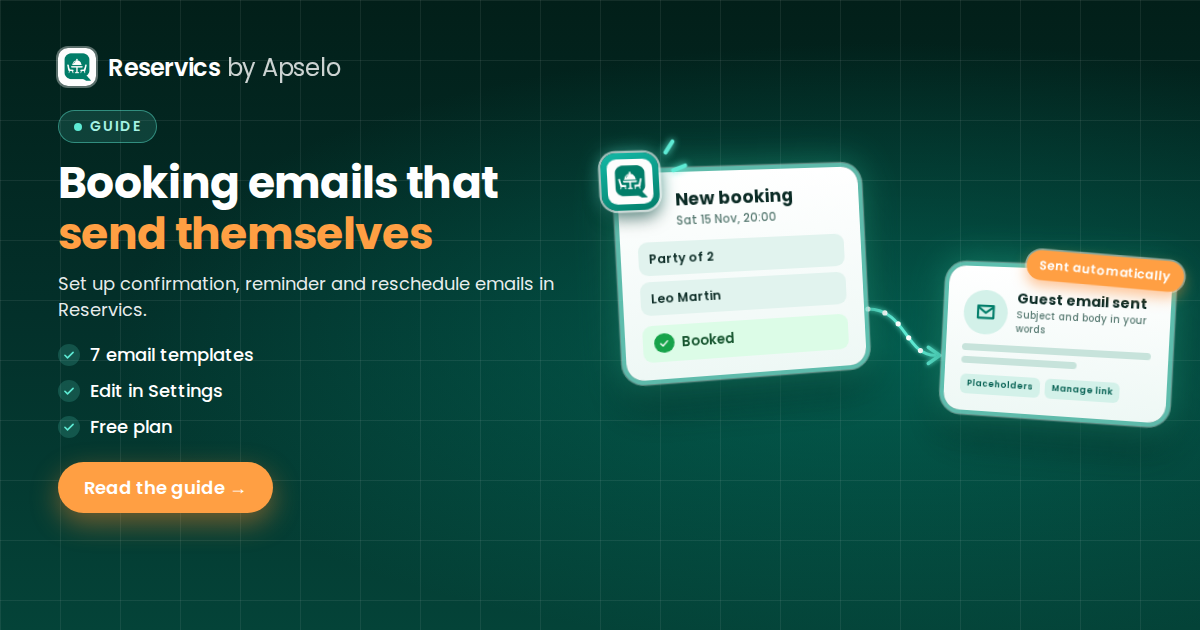
Reservics sends your booking emails automatically. When a guest books, cancels or changes a reservation, the right email goes out on its own, written in your words. You edit every template in Settings, Email Notifications, and the feature is included on the Free plan. If staff alerts are switched on, your team also gets them at a sensible address, even if you never set up a recipient list.
Below we cover the problem it solves, how it works, and how to set it up.
The problem: confirmations get forgotten during service
Most restaurants that take bookings have a version of the same story. A guest books for Friday. Someone means to send a confirmation. Then the lunch rush starts, the card machine stops working, and a supplier calls about a short delivery. The confirmation never goes out.
On Friday the guest isn't sure the table is real, so they phone to check. Or they don't turn up at all, because nothing reminded them.
Sending confirmations by hand takes time you don't have. It also depends on whoever is on shift remembering. When you are busy, that is the first job to drop.
Changes cause the same trouble. A guest cancels or moves their booking, and nobody writes back. Now they don't know if the change worked, and you can't be sure your book is right.
How automatic booking emails work
Reservics takes the job off your list. Every booking event has its own email template, and Reservics sends the right one when it happens.
The templates you get
There are templates for:
- Confirmation when a booking is made
- Reminder before the visit
- Cancellation when a booking is cancelled
- Reschedule when a booking moves to a new date or time
- Thank You after the visit
- Waitlist Joined when a guest joins your waitlist
- Waitlist Offer when a table opens up for someone on the waitlist
Each one has a subject line and a body that you can change.
Your words, not ours
A café and a fine dining room don't sound the same, so their emails shouldn't either. You write the subject and body for each template in Settings, Email Notifications.
To make each email personal, you use placeholders. Reservics swaps them for the real booking details when the email sends. The placeholders include:
{{customer_name}}for your guest's name{{date}}and{{time}}for the booking{{party}}for the party size{{code}}for the booking reference{{manage_url}}for the guest's booking management link{{restaurant_name}}for your restaurant's name
A simple confirmation might read:
Hi {{customer_name}}, your table for {{party}} at {{restaurant_name}} is booked for {{date}} at {{time}}. Your booking code is {{code}}. See you soon.
Your guest sees their own name, date, time and party size. You wrote it once.
A "Manage your booking" link in every transactional email
Reservics adds a Manage your booking link to transactional emails for you. Guests who need to check or change their plans have a clear place to go. That can mean fewer calls to the restaurant to ask "is my table still booked?"
Emails never get in the way of a booking
Notifications send in the background. If an email fails to send for any reason, the booking still goes through. Your guest still gets their table, and you don't lose a reservation because of an email problem.
Staff alerts: where they go when your list is empty
Guests aren't the only ones who need to know about bookings. Reservics can also alert your team about new bookings, bookings waiting for approval, cancellations, and a daily summary.
We have changed how these staff alerts behave when nobody is set up to receive them.
The new fallback
Say you have staff alerts switched on, but:
- your staff alert recipient list is empty, and
- no location team member has an email address,
then Reservics now sends those alerts to your shop's Shopify account email. Before, an empty list could mean alerts went nowhere. Now they go to the email you already use for your store.
The fallback covers new booking, pending approval, cancellation and daily summary staff alerts.
Adding your own recipients
You might want alerts going to a manager, the front-of-house inbox or a shared bookings address. If so, add those addresses to the staff alert list. As soon as you add an address, it replaces the fallback. Alerts then go only to the addresses you listed, not to your Shopify account email.
Turning staff alerts off
If you don't want staff alerts at all, untick the staff alert toggles in Settings. An empty recipient list on its own no longer means silence. The toggles are now the way to switch alerts off.
The help text in Settings now explains where alerts go when the recipient list is empty.
What changes for existing shops
Some shops had staff alerts switched on with an empty list, for example after reinstalling the app. Those shops will start getting staff alerts at their Shopify account email. If that's you and you would rather not get them, untick the toggles or add the address you want.
If your recipient list was never saved, Reservics may fill in the shop owner's email so you can see it in Settings. A list you cleared yourself stays empty. We won't put an address back that you chose to remove.
How to set up automatic booking emails
- Open Reservics in your Shopify admin and go to Settings, Email Notifications.
- Pick a template, starting with Confirmation, since every guest gets that one.
- Edit the subject line. Keep it short and clear, for example "Your table at {{restaurant_name}} on {{date}}".
- Write the body in your own voice. Use the placeholders for the guest's name, date, time, party size and booking code.
- Repeat for the other templates you use: Reminder, Cancellation, Reschedule, Thank You, and the waitlist emails if you run a waitlist.
- Check your staff alerts. Decide who on your team should hear about new bookings, approvals, cancellations and the daily summary. Add their addresses to the staff alert list. If you leave it empty and no location team member has an email address, alerts go to your Shopify account email.
- Switch off any staff alerts you don't need by unticking their toggles in Settings.
A tip from the floor: make a test booking yourself after you finish. Read the email the way a guest would. If anything sounds stiff or unclear, fix it now rather than after your first busy Saturday.
For the full walkthrough, see the help doc.
FAQ
Is this on the Free plan?
Yes. Automatic booking emails are included on the Reservics Free plan.
Can I change what the emails say?
Yes. You edit the subject and body of each template in Settings, Email Notifications, and use placeholders such as {{customer_name}}, {{date}} and {{time}} to fill in the booking details.
What happens if an email fails to send?
The booking still goes through. Notifications send in the background, so a sending failure never blocks a booking.
I left my staff alert list empty. Will I get alerts?
If staff alerts are switched on and no recipients or team member emails are set, alerts go to your shop's Shopify account email. Add your own addresses to replace that, or untick the toggles to stop alerts completely.
How do I stop staff alerts entirely?
Untick the staff alert toggles in Settings. Clearing the recipient list on its own doesn't turn alerts off any more.
Let the emails send themselves
Your guests should hear from you the moment they book, cancel or change plans. Your team should hear about it too. With Reservics, both happen without anyone stopping mid-service to type an email.
Install Reservics from the Shopify App Store and set up your first confirmation email today.